Ethnic Codes
The Ethnic codes page enables system administrators to select the DCSF Common Basic Dataset (CBDS) codes to be used by the Local Authority.
The Local Authority must issue this information to all schools within the Local Authority.
The CBDS codes are split into Main Codes (MC), Extended Codes (EC), Sub-Extended Codes (SC) and Other Codes (OC), displayed in hierarchical format. There are different sets of codes for England, Scotland and Wales.
The ethnic codes are listed in browse format.
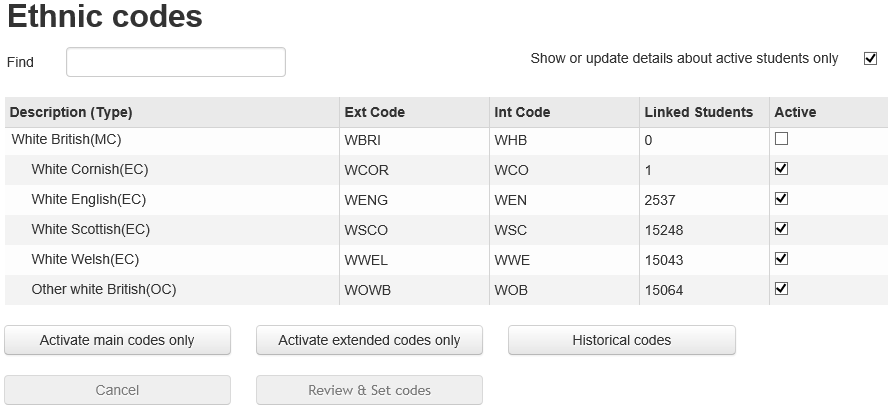
Information displayed in the listInformation displayed in the list
| Column Name | Description |
| Description (Type) | The name of the ethnic code followed by the type of code that it is. For example, ‘White British (MC)’ indicates that the code is White British and the type is Main Code. |
| Ext Code | The external code value. |
| Int Code | The internal code value. |
| Linked Students | Displays the number of students who have the code held against them in the STUDENT.ETHNIC_OR table, allowing the Local Authority to assess the usage of the code. |
| Active | When selected, the code can be selected within the software. If deselected, the code is not available for users to select against a student. |
| Show or update details about active students only | If selected, the number in the Linked Students column reflects only the number of active students. If deselected, the number in the Linked Students column also includes inactive students. |
- Activate/Deactivate Ethnic CodesActivate/Deactivate Ethnic Codes
In order to make an ethnic code available to users, it must be activated. Although you can have a mix of codes, you cannot have a mix of codes under a main code. For example, if you select White British (MC), then you cannot activate individual extended codes, i.e. White Cornish (EC) or White English (EC). If you do select a subordinate code, then the main code is automatically deactivated.
To activate ethnic codes:
- In the System admin area, select the Ethnic codes (Students) page.
- Choose from the following options:
- Select the Show or update details about active students only check box.
Any changes to the codes are applied to active students only.Selecting or deselecting the Show or update details about active students only check box alters the numbers displayed in the Linked Students column.
Selecting this option also affects the records that are updated when you click the Review & Set Codes button. This option is provided so inactive student records are not affected when you change the current valid ethnicity values. - Deselect the Show or update details about active students only check box (if ticked).
Any changes to the codes are applied to all students. - Click the Activate main codes only button (this deactivates all other code types) to activate all the main codes.
- Click the Activate extended codes only button (this deactivates all other code types) to activate all the extended codes.
- Select the Active check box for the individual codes you require to refine selected codes (e.g. to include some extended codes when generally you use only main codes).
If you select an extended code, then the parent main code is deactivated automatically.
- Select the Show or update details about active students only check box.
- Click the Review & Set codes button to display the New ethnic code set implications dialog, when you have made your changes.
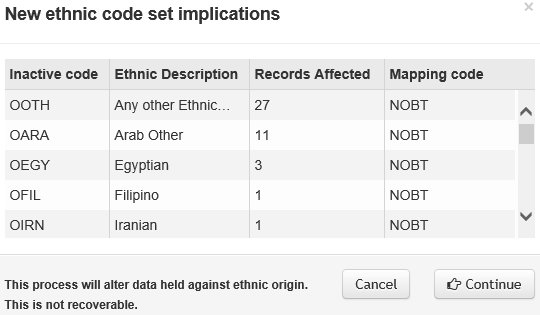
- Click the Continue button to update the ethnic codes once the proposed changes have been reviewed.
The codes are updated in the Lookups Table (ID 0001) and in the Ethnic Origin field in the STUDENT.ETHNIC_OR table.
Existing Codes not recognised as CBDS Codes will be made inactive.
- View Historical CodesView Historical Codes
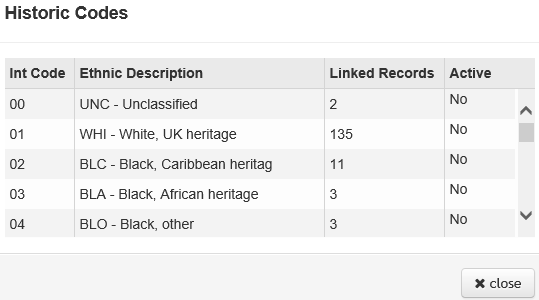
You can view existing (non-CBDS) ethnic origin codes that are currently linked to one or more students that do not have an equivalent CBDS code. You can view the Active status of the code and the number of student records linked to the code. The code information is taken from the Module Administration | User Codes lookup (Lookup ID 0001).
To view historical codes:
- In the System admin area, select the Ethnic codes (Students) page.
- Click the Historical codes button to display the Historic Codes dialog.